Open GL의 기본적인 코드는
https://developer.android.com/develop/ui/views/graphics/opengl
위 사이트에 공개된 코드를 사용하였다.
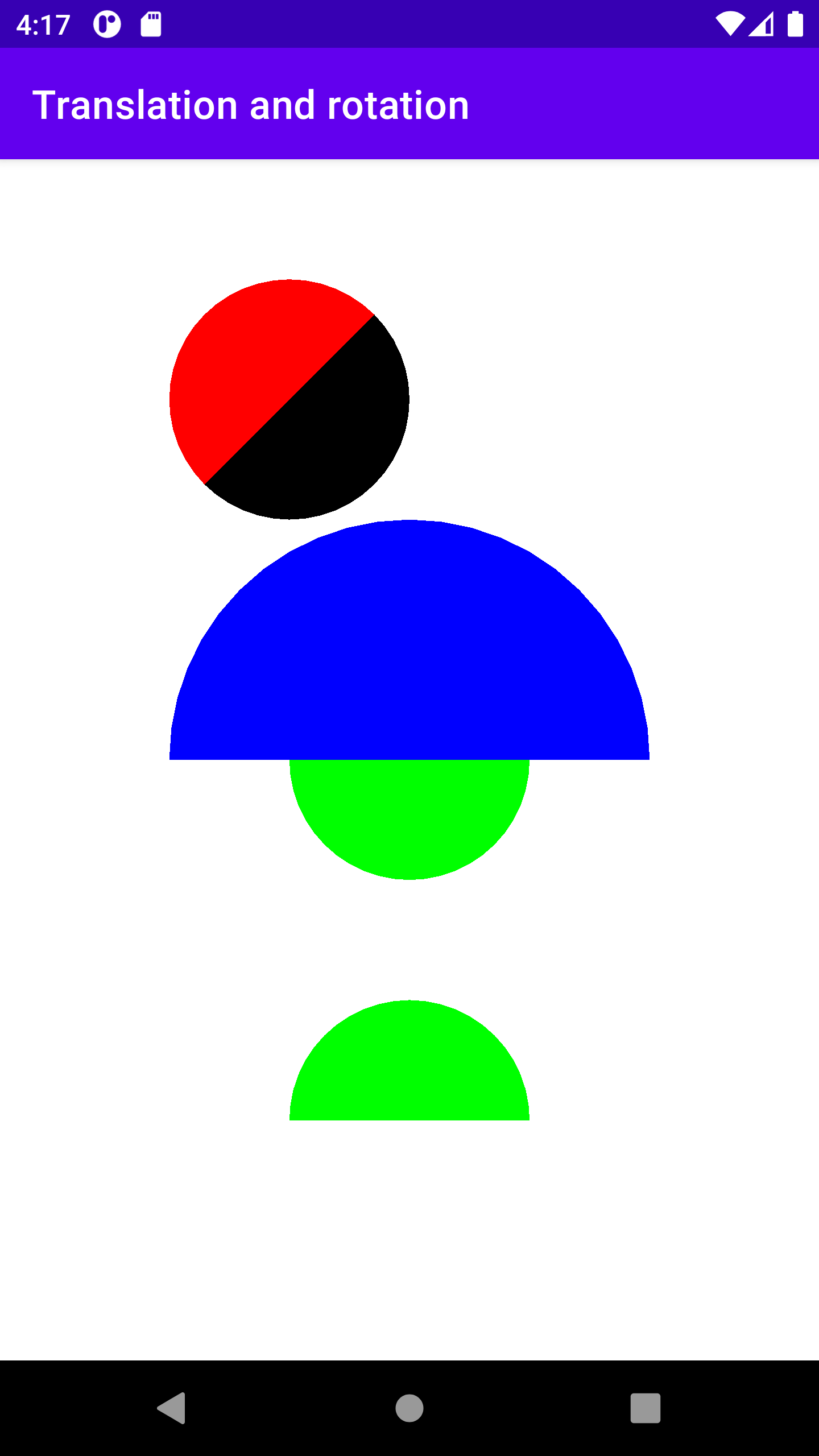
MainActivity.java
package com.example.translationandrotation;

import androidx.appcompat.app.AppCompatActivity;

import android.opengl.GLSurfaceView;
import android.os.Bundle;

public class MainActivity extends AppCompatActivity {

    private GLSurfaceView gLView;

    @Override
    protected void onCreate(Bundle savedInstanceState) {
        super.onCreate(savedInstanceState);
        // Create a GLSurfaceView instance and set it
        // as the ContentView for this Activity.
        gLView = new MyGLSurfaceView(this);
        setContentView(gLView);
    }
}
MyGLSurfaceView.java
package com.example.translationandrotation;

import android.content.Context;
import android.opengl.GLSurfaceView;

class MyGLSurfaceView extends GLSurfaceView {

    private final MyGLRenderer renderer;

    public MyGLSurfaceView(Context context){
        super(context);

        // Create an OpenGL ES 2.0 context
        setEGLContextClientVersion(2);

        renderer = new MyGLRenderer();

        // Set the Renderer for drawing on the GLSurfaceView
        setRenderer(renderer);
    }
}
MyGLRenderer.java
package com.example.translationandrotation;

import javax.microedition.khronos.egl.EGLConfig;
import javax.microedition.khronos.opengles.GL10;

import android.opengl.GLES20;
import android.opengl.GLSurfaceView;
import android.opengl.Matrix;

public class MyGLRenderer implements GLSurfaceView.Renderer {

    // vPMatrix is an abbreviation for "Model View Projection Matrix"
    private final float[] vPMatrix = new float[16];
    private final float[] projectionMatrix = new float[16];
    private final float[] viewMatrix = new float[16];


    private translation_and_rotation mCircle;

    public void onSurfaceCreated(GL10 unused, EGLConfig config) {
        // Set the background frame color
        GLES20.glClearColor(1.0f, 1.0f, 1.0f, 1.0f);

        mCircle = new translation_and_rotation();
    }

    public void onDrawFrame(GL10 unused) {
        // Redraw background color
        GLES20.glClear(GLES20.GL_COLOR_BUFFER_BIT);

        // Set the camera position (View matrix)
        Matrix.setLookAtM(viewMatrix, 0, 0, 0, -3, 0f, 0f, 0f, 0f, 1.0f, 0.0f);

        // Calculate the projection and view transformation
        Matrix.multiplyMM(vPMatrix, 0, projectionMatrix, 0, viewMatrix, 0);

        mCircle.draw(vPMatrix);
    }

    public void onSurfaceChanged(GL10 unused, int width, int height) {
        GLES20.glViewport(0, 0, width, height);

        float ratio = (float) width / height;

        // this projection matrix is applied to object coordinates
        // in the onDrawFrame() method
        Matrix.frustumM(projectionMatrix, 0, ratio, -ratio, -1, 1, 3, 7);

    }

    public static int loadShader(int type, String shaderCode){

        // create a vertex shader type (GLES20.GL_VERTEX_SHADER)
        // or a fragment shader type (GLES20.GL_FRAGMENT_SHADER)
        int shader = GLES20.glCreateShader(type);

        // add the source code to the shader and compile it
        GLES20.glShaderSource(shader, shaderCode);
        GLES20.glCompileShader(shader);

        return shader;
    }
}
translation_and_rotation.java
package com.example.translationandrotation;

import android.opengl.GLES20;
import android.opengl.Matrix;

import java.nio.ByteBuffer;
import java.nio.ByteOrder;
import java.nio.FloatBuffer;

public class translation_and_rotation {
    private final String vertexShaderCode =
            // This matrix member variable provides a hook to manipulate
            // the coordinates of the objects that use this vertex shader
            "uniform mat4 uMVPMatrix;" +
                    "attribute vec4 vPosition;" +
                    "void main() {" +
                    // the matrix must be included as a modifier of gl_Position
                    // Note that the uMVPMatrix factor *must be first* in order
                    // for the matrix multiplication product to be correct.
                    "  gl_Position = uMVPMatrix * vPosition;" +
                    "}";

    // Use to access and set the view transformation
    private int vPMatrixHandle;


    //원을 돌려주거나 움직이려면 필요한거임
    private final float[] mRotationMatrix = new float[16];
    private final float[] result_MvpMatrix_rotation = new float[16];


    private final float[] mTranslationMatrix = new float[16];
    private final float[] result_MvpMatrix_translation = new float[16];
    private final float[] result_mvpMatrix_translation_rotation = new float[16];

    //private final float[] result_mvpMatrix_mTranslationMatrix = new float[16];

    private final float[]  result_mvpMatrix_translation_rot_rot = new float[16];
    private final float[] mRotationMatrix_2 = new float[16];

    private FloatBuffer vertexBuffer_circle_1, vertexBuffer_circle_2;

    private final int mProgram;

    private int positionHandle;
    private int colorHandle;

    private static final int vertexCount = 100;
    private final int vertexStride = COORDS_PER_VERTEX * 4; // 4 bytes per vertex

    // number of coordinates per vertex in this array
    static final int COORDS_PER_VERTEX = 3;

    static float circle_coordinates_1[] = new float[vertexCount*COORDS_PER_VERTEX]; //원의 개수와 비례해 증가
    static float circle_coordinates_2[] = new float[vertexCount*COORDS_PER_VERTEX]; //원의 개수와 비례해 증가


    // Set color with red, green, blue and alpha (opacity) values
    float color[] = { 0.63671875f, 0.76953125f, 0.22265625f, 1.0f };

    float color_red[] = { 1.0f, 0.0f, 0.0f, 1.0f };
    float color_blue[] = { 0.0f, 0.0f, 1.0f, 1.0f };
    float color_green[] = { 0.0f, 1.0f, 0.0f, 1.0f };
    float color_black[] = { 0.0f, 0.0f, 0.0f, 1.0f };


    public translation_and_rotation() {

        //circle 1 r = 0.2
        float R =0.2f;
        float r = 0.2f;

        float circle_center_x = 0.0f;
        float circle_center_y = 0.0f;
        //// set vertexes for circle
        circle_coordinates_1[0] =  circle_center_x;     //// v0: x = 0
        circle_coordinates_1[1] = circle_center_y;   //// v0: y = 0
        circle_coordinates_1[2] = 0.0f;   //// v0: z = 0
        /// make a loop to compute circle vertexes
        float d_angle = (float)Math.PI/24;  /// d_angle = pi/12 = 15 deg
        int index = 3;


        for (float angle = 0; angle <= Math.PI + d_angle; angle = angle + d_angle)
        //for (float angle = (float)Math.PI/4; angle <= 5*Math.PI/4 + d_angle; angle = angle + d_angle)
        {

            circle_coordinates_1[index] = circle_center_x + r * (float)Math.cos(angle); //// x = R * cos(angle)
            circle_coordinates_1[index+1] = circle_center_y + R * (float)Math.sin(angle); //// y = R * sin(angle)
            circle_coordinates_1[index+2] = 0.0f;
            index = index + 3; //// index = 6,9,12,...
        }
        // initialize vertex byte buffer for shape coordinates
        ByteBuffer bb = ByteBuffer.allocateDirect(
                // (number of coordinate values * 4 bytes per float)
                circle_coordinates_1.length * 4);
        // use the device hardware's native byte order
        bb.order(ByteOrder.nativeOrder());

        // create a floating point buffer from the ByteBuffer
        vertexBuffer_circle_1 = bb.asFloatBuffer();
        // add the coordinates to the FloatBuffer
        vertexBuffer_circle_1.put(circle_coordinates_1);
        // set the buffer to read the first coordinate
        vertexBuffer_circle_1.position(0);


        //second circle  R = 0.4
        R =0.4f;

        circle_center_x = 0.0f;
        circle_center_y = 0.0f;
        //// set vertexes for circle
        circle_coordinates_2[0] =  circle_center_x;     //// v0: x = 0
        circle_coordinates_2[1] = circle_center_y;   //// v0: y = 0
        circle_coordinates_2[2] = 0.0f;   //// v0: z = 0
        /// make a loop to compute circle vertexes
        d_angle = (float)Math.PI/24;  /// d_angle = pi/12 = 15 deg
        index = 3;

        for (float angle = 0; angle <= Math.PI + d_angle; angle = angle + d_angle)
        //for (float angle = (float)Math.PI/4; angle <= 5*Math.PI/4 + d_angle; angle = angle + d_angle)
        {

            circle_coordinates_2[index] = circle_center_x + R * (float)Math.cos(angle); //// x = R * cos(angle)
            circle_coordinates_2[index+1] = circle_center_y + R * (float)Math.sin(angle); //// y = R * sin(angle)
            circle_coordinates_2[index+2] = 0.0f;
            index = index + 3; //// index = 6,9,12,...
        }

        // initialize vertex byte buffer for shape coordinates
        ByteBuffer bb2 = ByteBuffer.allocateDirect(
                // (number of coordinate values * 4 bytes per float)
                circle_coordinates_2.length * 4);
        // use the device hardware's native byte order
        bb2.order(ByteOrder.nativeOrder());

        // create a floating point buffer from the ByteBuffer
        vertexBuffer_circle_2 = bb2.asFloatBuffer();
        // add the coordinates to the FloatBuffer
        vertexBuffer_circle_2.put(circle_coordinates_2);
        // set the buffer to read the first coordinate
        vertexBuffer_circle_2.position(0);


        int vertexShader = MyGLRenderer.loadShader(GLES20.GL_VERTEX_SHADER,
                vertexShaderCode);
        int fragmentShader = MyGLRenderer.loadShader(GLES20.GL_FRAGMENT_SHADER,
                fragmentShaderCode);

        // create empty OpenGL ES Program
        mProgram = GLES20.glCreateProgram();

        // add the vertex shader to program
        GLES20.glAttachShader(mProgram, vertexShader);

        // add the fragment shader to program
        GLES20.glAttachShader(mProgram, fragmentShader);

        // creates OpenGL ES program executables
        GLES20.glLinkProgram(mProgram);
    }

    public void draw(float[] mvpMatrix) {

        // get handle to shape's transformation matrix
        vPMatrixHandle = GLES20.glGetUniformLocation(mProgram, "uMVPMatrix");

        // Pass the projection and view transformation to the shader
        GLES20.glUniformMatrix4fv(vPMatrixHandle, 1, false, mvpMatrix, 0);

        // Add program to OpenGL ES environment
        GLES20.glUseProgram(mProgram);

        // get handle to vertex shader's vPosition member
        positionHandle = GLES20.glGetAttribLocation(mProgram, "vPosition");

        // Enable a handle to the triangle vertices
        GLES20.glEnableVertexAttribArray(positionHandle);


        // Prepare the circle coordinate data (circle 2 is bigger)
        GLES20.glVertexAttribPointer(positionHandle, COORDS_PER_VERTEX,
                GLES20.GL_FLOAT, false,
                vertexStride, vertexBuffer_circle_2);

        // get handle to fragment shader's vColor member
       colorHandle = GLES20.glGetUniformLocation(mProgram, "vColor");

        // Set color for drawing the circle 1
        GLES20.glUniform4fv(colorHandle, 1, color_blue, 0);

        // Draw the circle 1
        GLES20.glDrawArrays(GLES20.GL_TRIANGLE_FAN, 0, 26);


        ///rotate coordinate 180 degree   원 그리는 축 180 회전시캬줌
        Matrix.setIdentityM(mRotationMatrix,0);
        Matrix.rotateM(mRotationMatrix,0,180.0f,0,0,-1.0f);

        Matrix.multiplyMM(result_MvpMatrix_rotation,0,mvpMatrix,0,mRotationMatrix,0);
        GLES20.glUniformMatrix4fv(vPMatrixHandle, 1, false, result_MvpMatrix_rotation, 0);

        // Prepare the circle coordinate data 출 180도 회전시켜주고 반원 다시 그림
        GLES20.glVertexAttribPointer(positionHandle, COORDS_PER_VERTEX,
                GLES20.GL_FLOAT, false,
                vertexStride, vertexBuffer_circle_1);

        // Set color for drawing the circle2
        GLES20.glUniform4fv(colorHandle, 1, color_green, 0);

        // Draw the circle2
        GLES20.glDrawArrays(GLES20.GL_TRIANGLE_FAN, 0, 26);


        //translate center to (0,-0.6)
        Matrix.setIdentityM(mTranslationMatrix,0);
        Matrix.translateM(mTranslationMatrix,0,0.0f,-0.6f,0.0f);
        Matrix.multiplyMM(result_MvpMatrix_translation,0,mvpMatrix,0,mTranslationMatrix,0);
        GLES20.glUniformMatrix4fv(vPMatrixHandle, 1, false, result_MvpMatrix_translation, 0);

        // Draw the circle2 in new center (0,-0.6)
        GLES20.glDrawArrays(GLES20.GL_TRIANGLE_FAN, 0, 26);
        //Matrix.translateM(mTranslationMatrix,0,0.0f,-0.6f,0.0f); //이거 뭐임 주석 하나 마나아님?


//        //draw the second half of the circle
//        Matrix.setIdentityM(mRotationMatrix_2,0);
//        Matrix.rotateM(mRotationMatrix_2,0,180.0f,0,0,-1.0f);
//        Matrix.multiplyMM(result_mvpMatrix_translation_rot_rot, 0, result_MvpMatrix_translation, 0, mRotationMatrix_2,0);
//        //복사할 거를 3번쨰에 적어줌 (result_MvpMatrix_translation, 앞에서 위치 0,-0.6으로 바꾼애) 그리고 복사할 새로운 배열 맨 앞에 적어줌
//
////        GLES20.glVertexAttribPointer(positionHandle, COORDS_PER_VERTEX,
////                GLES20.GL_FLOAT, false,
////                vertexStride, vertexBuffer_circle_2);
//        GLES20.glUniform4fv(colorHandle, 1, color_black, 0);
//        GLES20.glUniformMatrix4fv(vPMatrixHandle, 1, false, result_mvpMatrix_translation_rot_rot, 0);
//        GLES20.glDrawArrays(GLES20.GL_TRIANGLE_FAN, 0, 26);


        //translate center to (-0.2,0.6) rotate 45 deg
        Matrix.setIdentityM(mTranslationMatrix,0);
        Matrix.setIdentityM(mRotationMatrix,0);
        Matrix.translateM(mTranslationMatrix,0,-0.2f,0.6f,0.0f);
        Matrix.rotateM(mRotationMatrix,0,-45.0f,0,0,-1.0f);

        Matrix.multiplyMM(result_MvpMatrix_translation,0,mvpMatrix,0,mTranslationMatrix,0);
        Matrix.multiplyMM(result_mvpMatrix_translation_rotation,0,result_MvpMatrix_translation,0,mRotationMatrix,0);
        //위치 먼저 바꾸고 그 다음에 각도 회전하고 그걸 복사한거 (새로운 배열에 저장해줘야해서 앞에서 사용한 배열이랑 다른거임)

        GLES20.glVertexAttribPointer(positionHandle, COORDS_PER_VERTEX,
                GLES20.GL_FLOAT, false,
                vertexStride, vertexBuffer_circle_1);
        GLES20.glUniformMatrix4fv(vPMatrixHandle, 1, false, result_mvpMatrix_translation_rotation, 0);
        GLES20.glUniform4fv(colorHandle, 1, color_red, 0);
        GLES20.glDrawArrays(GLES20.GL_TRIANGLE_FAN, 0, 26);


        //draw the second half of the circle
        Matrix.setIdentityM(mRotationMatrix_2,0);
        Matrix.rotateM(mRotationMatrix_2,0,180.0f,0,0,-1.0f);
        Matrix.multiplyMM(result_mvpMatrix_translation_rot_rot, 0, result_mvpMatrix_translation_rotation, 0, mRotationMatrix_2,0);


        GLES20.glUniform4fv(colorHandle, 1, color_black, 0);
        GLES20.glUniformMatrix4fv(vPMatrixHandle, 1, false, result_mvpMatrix_translation_rot_rot, 0);
        GLES20.glDrawArrays(GLES20.GL_TRIANGLE_FAN, 0, 26);


        // Disable vertex array
        GLES20.glDisableVertexAttribArray(positionHandle);
    }


    private final String fragmentShaderCode =
            "precision mediump float;" +
                    "uniform vec4 vColor;" +
                    "void main() {" +
                    "  gl_FragColor = vColor;" +
                    "}";
}
위 코드에서 사용된 원의 반지름은 각 0.2, 0.4로 지정해두었다.
만약 큰 원과 작은 원을 겹쳐 그릴 경우 큰 원을 먼저 그린 후, 작은 원을 그려야 큰 원 위에 작은 원이 위치하게 된다.
같은 크기의 원을 다양한 위치에 다양한 방향으로 그리려는 경우,
private final float[] mRotationMatrix = new float[16];
private final float[] result_MvpMatrix_rotation = new float[16];


private final float[] mTranslationMatrix = new float[16];
private final float[] result_MvpMatrix_translation = new float[16];
각 경우에 해당하는 배열을 생성해 원을 다양한 위치에 그릴 수 있다.
 // Prepare the circle coordinate data (circle 2 is bigger)
 GLES20.glVertexAttribPointer(positionHandle, COORDS_PER_VERTEX,
         GLES20.GL_FLOAT, false,
         vertexStride, vertexBuffer_circle_2);

 // get handle to fragment shader's vColor member
colorHandle = GLES20.glGetUniformLocation(mProgram, "vColor");

 // Set color for drawing the circle 1
 GLES20.glUniform4fv(colorHandle, 1, color_blue, 0);

 // Draw the circle 1
 GLES20.glDrawArrays(GLES20.GL_TRIANGLE_FAN, 0, 26);
먼저 반지름 0.4의 반원(gllDrawArrays에 변수를 26으로 지정)을 먼저 그려주었다.
///rotate coordinate 180 degree   원 그리는 축 180 회전시캬줌
Matrix.setIdentityM(mRotationMatrix,0);
Matrix.rotateM(mRotationMatrix,0,180.0f,0,0,-1.0f);

Matrix.multiplyMM(result_MvpMatrix_rotation,0,mvpMatrix,0,mRotationMatrix,0);
GLES20.glUniformMatrix4fv(vPMatrixHandle, 1, false, result_MvpMatrix_rotation, 0);
원의 축 변경 => rotateM
앞선 그린 반윈 밑에 원이 위치할 수 있도록, 원의 축을 180도(rotateM에 각도 변수 180으로 지정) 회전시켜 주었다.
// Prepare the circle coordinate data 출 180도 회전시켜주고 반원 다시 그림
GLES20.glVertexAttribPointer(positionHandle, COORDS_PER_VERTEX,
        GLES20.GL_FLOAT, false,
        vertexStride, vertexBuffer_circle_1);

// Set color for drawing the circle2
GLES20.glUniform4fv(colorHandle, 1, color_green, 0);

// Draw the circle2
GLES20.glDrawArrays(GLES20.GL_TRIANGLE_FAN, 0, 26);
축을 180도 회전시켜준 원의 사이즈(glVertexAttribPointer)와 색(glUniform4fv)을 지정해주고 glDrawArrays를 이용해 그려주었다.
//translate center to (0,-0.6)
Matrix.setIdentityM(mTranslationMatrix,0);
Matrix.translateM(mTranslationMatrix,0,0.0f,-0.6f,0.0f);

Matrix.multiplyMM(result_MvpMatrix_translation,0,mvpMatrix,0,mTranslationMatrix,0);
GLES20.glUniformMatrix4fv(vPMatrixHandle, 1, false, result_MvpMatrix_translation, 0);
원의 중심 변경 => translateM
원을 그리고 싶은 좌표를 translateM에 지정해주면 원하는 위치에 원을 새로 그릴 수 있다.
// Draw the circle2 in new center (0,-0.6)
GLES20.glDrawArrays(GLES20.GL_TRIANGLE_FAN, 0, 26);
glDrawArrays를 사용해 앞서 원을 그려 주었다.
만약 원의 크기와 색을 변경해주고 싶다면, glVertexAttribPointer와 glUniform4fv을 사용해 변경해주면 된다.
//translate center to (-0.2,0.6) rotate 45 deg
Matrix.setIdentityM(mTranslationMatrix,0);
Matrix.setIdentityM(mRotationMatrix,0);
Matrix.translateM(mTranslationMatrix,0,-0.2f,0.6f,0.0f);
Matrix.rotateM(mRotationMatrix,0,-45.0f,0,0,-1.0f);

Matrix.multiplyMM(result_MvpMatrix_translation,0,mvpMatrix,0,mTranslationMatrix,0);
Matrix.multiplyMM(result_mvpMatrix_translation_rotation,0,result_MvpMatrix_translation,0,mRotationMatrix,0);
위 코드는 원의 중심(-0.2, 0.6)과 축(45도)을 동시에 변경해준 코드이다.
한가지 주의할 점이 있다면 최종 multiplyMM에 사용한 변수를 앞서 사용한 변수와 다른 변수를 사용해야 한다는 점이다.
(앞서 사용한 배열: result_MvpMatrix_rotation, result_MvpMatrix_translation
/ 여기서 사용한 배열: result_mvpMatrix_translation_rotation)
//draw the second half of the circle
Matrix.setIdentityM(mRotationMatrix_2,0);
Matrix.rotateM(mRotationMatrix_2,0,180.0f,0,0,-1.0f);
Matrix.multiplyMM(result_mvpMatrix_translation_rot_rot, 0, result_mvpMatrix_translation_rotation, 0, mRotationMatrix_2,0);


GLES20.glUniform4fv(colorHandle, 1, color_black, 0);
GLES20.glUniformMatrix4fv(vPMatrixHandle, 1, false, result_mvpMatrix_translation_rot_rot, 0);
GLES20.glDrawArrays(GLES20.GL_TRIANGLE_FAN, 0, 26);
원의 중심과 축을 변경해준 반원과 새롭게 그린 반원을 합쳐주기 위해
축 변경하는 rotateM을 사용해 180도 회전한 원이 앞선 원과 같이 그려질 수 있도록 코드르 작성하였다.
이때, 앞 선 배열과 다른 mRotationMatrix_2 배열을 사용하는 것이 중요하다.
'실시간 운영체제' 카테고리의 다른 글
| [실시간 운영체제] Open GL clones animation (0) | 2023.06.17 |
|---|---|
| [실시간 운영체제] Open GL animation (0) | 2023.06.15 |
| [실시간 운영체제] Open GL Draw house and circles (0) | 2023.06.15 |
| [실시간 운영체제] Computer Graphics (Draw circle) (1) | 2023.06.15 |
| [실시간 운영체제] Computer graphics (Draw Triangle) (1) | 2023.06.14 |

